Common Causes of Citrix VDA Registration Failures with Delivery Controllers
Introduction :
This guide is designed to help Citrix administrators, support engineers, and IT professionals systematically identify and resolve issues related to Citrix Virtual Delivery Agent (VDA) registration failures with Delivery Controllers (DDCs). VDA registration is a critical step in enabling virtual desktops and applications to be delivered to end users. When a VDA fails to register, it can lead to inaccessible resources, degraded user experience, and operational downtime.
This document combines both common causes and practical troubleshooting steps, consolidating information from diagnostic experience and Citrix best practices. It provides a structured approach covering network connectivity, configuration, DNS, Active Directory, services, time synchronization, and more.
Whether you’re setting up a new Citrix environment or resolving ongoing registration issues, this guide will serve as a comprehensive reference and step-by-step runbook to efficiently troubleshoot and restore VDA connectivity with Delivery Controllers.
How to Troubleshoot VDA Registration Issues:
If the VDA fails to register and cannot communicate with Delivery Controllers after a successful installation, please follow these steps:
1.Network Connectivity Issues.
Firewall Blocking Ports: The VDA might be unable to reach the Delivery Controller due to firewall restrictions. Citrix VDAs typically require the following ports to be open:
- TCP 80 (HTTP)
- TCP 443 (HTTPS)
- UDP 1604 (for legacy ICA communication)
- TCP 1494 (Citrix ICA Traffic)
- TCP 2598 (Session Reliability)
Confirm Ports 80 and 443 are Open:
To verify network connectivity and confirm that ports 80 (HTTP) and 443 (HTTPS) are open and reachable from the source machine.
- Open PowerShell on the source machine and run the following command to test port 80/443:
Test-NetConnection DDCDomain.local -Port 80
Test-NetConnection DDCDomain.local -Port 443

Figure: Output of Test-NetConnection command confirming successful TCP connectivity to Groupware.local on port 443.
The command resolves the hostname to its IP address and tests if the target server is reachable over HTTPS (port 443). The result TcpTestSucceeded: True confirms that the network path and port are open and accessible.
Alternate Method – Use netstat to Check Open Ports
To verify whether ports 80 and 443 are being used or listened to on the local machine using the netstat command.
Open Command Prompt as Administrator.
Run the following command to check port 80/443:
netstat -ano | findstr “:80”
netstat -ano | findstr “:443”

Figure: Output of netstat -ano | findstr “:443” command showing established TCP connections over port 443 (HTTPS).
The local machine (192.168.0.195) has three established outbound HTTPS connections to external IP addresses. The final column shows the associated Process IDs (PIDs), which can be used to identify the responsible applications via Task Manager or task list
2. DNS Resolution Problems.
DNS issues can prevent a VDA from communicating with a Delivery Controller if it cannot resolve the Citrix Delivery Controller’s hostname. This often results from misconfigured DNS settings or missing DNS records. Use tools like nslookup to verify name resolution from both the VDA and DDC.
Test DNS Resolution and Network Connectivity from VDA to DDC
On the VDA, open Command Prompt or PowerShell.
Run the following commands:
nslookup DDCDomain.local
ping DDCDomain.local
Test-Connection DDCDomain.local -Count 4
Validate DNS Resolution and Network Connectivity from DDC to VDA
On the DDC, open Command Prompt or PowerShell.
Run the following commands:
nslookup VDAHostname.local
ping VDAHostname.local
Test-Connection VDAHostname.local -Count 4
Confirm that:
- nslookup returns the correct IP address of the VDA.
- ping receives replies from the VDA.
- Test-Connection completes successfully with no errors.
3. VDA Configuration Issues
To verify that the VDA is properly configured to communicate with the Delivery Controller and is correctly registered in the environment.
VDA Not Configured to Register with a Controller: Ensure that the VDA is correctly configured with the Delivery Controller’s name/IP address in the Registration Settings. The VDA might be manually configured to contact a wrong DC, or the registration settings may be missing.
Incorrect Delivery Controller(s): In some cases, if the VDA is configured with the wrong Delivery Controller or a controller that is offline or unreachable, registration will fail.
Ensure Citrix Services Are Operational
On the VDA, open PowerShell and run:
					Get-Service | Where-Object { $_.Status -eq 'Running' -and
$_.DisplayName -like 'Citrix*' }
Or alternatively,
To check if key Citrix services are running, press Windows + R, type services.msc, and hit Enter.
In the Services window, find Citrix Desktop Service (BrokerAgent) and Citrix ICA Service (PortICA). Make sure their status is Running. If not, right-click and select Start to get them running. This quick check helps troubleshoot VDA registration and connection issues
Confirm that the following key services are running:
- Citrix Desktop Service (BrokerAgent)
- Citrix ICA Service (PortICA)
4. Review DDC List in VDA Registry:
On the VDA, open Registry Editor and navigate to:
- HKLM\Software\Citrix\VirtualDesktopAgent
or
HKLM\Software\Wow6432Node\Citrix\VirtualDesktopAgent
Look for the key:
HKEY_LOCAL_MACHINE\Software\Citrix\VirtualDesktopAgent\ListOfDDCs
And
HKEY_LOCAL_MACHINE\Software\Citrix\VirtualDesktopAgent\ListOfSIDs
- To obtain SIDs run the following command on the Delivery Controllers:
Get-BrokerController | Select-Object Name, SID
Copy and add the SIDs of the controllers to registry.

Figure: This screenshot shows the Windows Registry Editor focused on the Citrix Virtual Desktop Agent settings. In particular, the ListOfDDCs and ListOfSIDs registry entries must be properly populated.
- ListOfDDCs contains the Delivery Controller FDQN or IPs that the Virtual Desktop Agent uses to register.
- ListOfSIDs holds the Security Identifiers (SIDs) associated with those controllers.
Both fields need to be correctly filled out in the registry to ensure successful communication and registration of the VDA with the Citrix infrastructure.
5.Confirm the VDA's Domain membership
If the VDA is not joined to the correct Active Directory domain or subdomain, or if it resides in a different domain from the Delivery Controller (DDC) without a proper trust relationship, it may fail to authenticate and remain in an unregistered state.
To verify the domain membership:
Run the following PowerShell command on the VDA:
(Get-WmiObject Win32_ComputerSystem). Domain
This will return the domain name the VDA is currently joined to.
Run the same command on the DDC to determine its domain.
Compare both domain names to ensure they match or that a valid trust exists between them.
6. Test Active Directory Connection
To check the health of the secure channel between the VDA and its domain, run the PowerShell command Test-ComputerSecureChannel. This helps confirm whether the VDA can communicate properly with Active Directory. A result of True means the connection is intact; False indicates a broken trust, which may require rejoining the domain or resetting the channel.
Check Active Directory Connection
To assess whether the VDA maintains a valid connection to Active Directory, examine the secure channel between the VDA and its domain.
Run the following PowerShell command:
Test-ComputerSecureChannel
A result of True means the secure channel is intact.

The figure shows a PowerShell session where the Test-ComputerSecureChannel cmdlet is used to check the secure channel between the local computer and its domain controllers (DCs).
7 Time Sync Between DDC and VDA
Accurate time synchronization between the Delivery Controller (DDC) and the Virtual Delivery Agent (VDA) is essential for authentication and trust. Follow the steps below on both the DDC and VDA machines.
Check Time Status
Run the following command to view the current time configuration and sync status:
w32tm /query /status
Compare results between DDC and VDA — values such as Source, Stratum, and Last Successful Sync Time should match or align closely.
Set Manual Time Server
Configure each system to sync with your preferred time source (replace with your actual NTP server):
w32tm /config /syncfromflags:manual /manualpeerlist:abc.defg.local
Apply Configuration Changes
Update the system settings to apply the manual time source:
w32tm /config /update
Force Time Resync
Immediately synchronize the system time:
w32tm /resync

This figure displays the output of the w32tm /query /computer:<name> /status command, which is used to query time synchronization status for remote computers.
The screenshot confirms both the DDC and VDA are successfully synchronized to the same time source (AD01.testlab.com) with matching stratum and minimal delay
Note: If synchronization fails or outputs differ significantly between machines, investigate domain time hierarchy and ensure the correct NTP settings are in place.
8. Check Windows Firewall
Ensure Windows Firewall is disabled or properly configured on both VDAs and DDCs.
9. Run Citrix Health Assistant
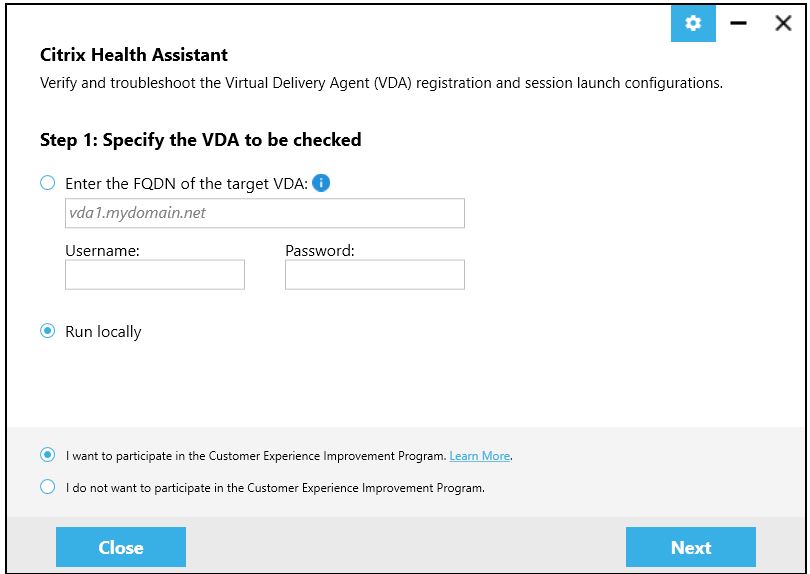
How to Use:
- Download the tool from the official Citrix site:
https://www.citrix.com/downloads/ - Run the tool directly on the VDA machine experiencing issues.
This PowerShell script automates the troubleshooting steps mentioned in the article.
At Datacompute Consulting, our experts can assist you with custom PowerShell automation,Citrix
diagnostics, and infrastructure optimization tailored to your environment.
					# =============================================================
# Script: Test-VDARegistration.ps1
# Version: 1.0
# Author: Datacompute Consulting LLC
# Website: https://datacompute.net
# =============================================================
# Description:
#   This script diagnoses Citrix Virtual Delivery Agent (VDA)
#   registration issues with Delivery Controllers (DDCs).
#   It performs checks for:
#     - Network connectivity
#     - DNS resolution
#     - Registry entries
#     - Domain membership
#     - Time synchronization
#   Results are displayed in color:
#     - Green  = OK
#     - Yellow = Needs Attention
# =============================================================
# Usage:
#   1. Run PowerShell as Administrator.
#   2. Execute the script and enter:
#        - The FQDN (Fully Qualified Domain Name) of the Delivery Controller.
#        - Your domain name when prompted.
#   3. The script will test connectivity and display the diagnostic results
#      directly in the console.
#
# Example:
#   PS C:\> .\Test-VDARegistration.ps1
#   Enter Delivery Controller FQDN: ddc01.domain.local
#   Enter Domain Name: domain.local
#
#   Results will be displayed on screen.
# =============================================================
# Disclaimer:
#   This script has been tested and verified in production environments
#   with successful results. However, Datacompute Consulting LLC is not
#   responsible for any issues, damages, or data loss resulting from its use.
#   Use at your own discretion and test in a lab before production deployment.
#
# Ownership:
#   All rights and royalties are owned by Datacompute Consulting LLC.
# =============================================================


Write-Host "Checking Citrix Workspace installation and ICA file association..." -ForegroundColor Cyan

# --- Step 1: Check Citrix Workspace installation ---
$workspacePaths = @(
    "HKLM:\SOFTWARE\Citrix\ICA Client",
    "HKLM:\SOFTWARE\WOW6432Node\Citrix\ICA Client"
)

$workspaceInstalled = $false
$workspaceDir = $null
$workspaceVersion = $null

foreach ($path in $workspacePaths) {
    if (Test-Path $path) {
        $workspaceInstalled = $true
        try {
            $props = Get-ItemProperty -Path $path
            $workspaceDir = $props.InstallDir
            $workspaceVersion = $props.Version
        } catch {}
        break
    }
}

if ($workspaceInstalled -and (Test-Path $workspaceDir)) {
    Write-Host " Citrix Workspace is installed." -ForegroundColor Green
    Write-Host "   Path: $workspaceDir"
    if ($workspaceVersion) {
        Write-Host "   Version: $workspaceVersion" -ForegroundColor Gray
    } else {
        Write-Host "   Version: (unknown)" -ForegroundColor Yellow
    }
} else {
    Write-Host " Citrix Workspace not found." -ForegroundColor Red
    exit
}

# --- Step 2: Check current ICA association ---
$icaAssoc = $null
$icaHandler = $null

try {
    $icaAssoc = (Get-ItemProperty "HKCU:\Software\Microsoft\Windows\CurrentVersion\Explorer\FileExts\.ica\UserChoice" -ErrorAction Stop).ProgId
} catch {}

if (-not $icaAssoc) {
    try {
        $icaAssoc = (Get-ItemProperty "HKCR\.ica" -ErrorAction Stop).'(default)'
    } catch {}
}

if ($icaAssoc) {
    try {
        $icaHandler = (Get-ItemProperty "HKCR:\$icaAssoc\shell\open\command" -ErrorAction Stop).'(default)'
    } catch {}
} else {
    try {
        $icaHandler = (Get-ItemProperty "HKCR\.ica\shell\open\command" -ErrorAction Stop).'(default)'
    } catch {}
}

# --- Step 3: Determine if association is correct ---
$expectedExe = "wfcrun32.exe"
$expectedPath = Join-Path $workspaceDir "wfcrun32.exe"
$expectedCommand = "`"$expectedPath`" `"%1`""

if ($icaHandler -and ($icaHandler -match [regex]::Escape($expectedExe))) {
    Write-Host " .ICA files are correctly associated with Citrix Connection Manager." -ForegroundColor Green
    Write-Host "Handler: $icaHandler" -ForegroundColor Gray
} else {
    Write-Host " .ICA association missing or incorrect." -ForegroundColor Yellow
    if ($icaHandler) {
        Write-Host "Current handler: $icaHandler" -ForegroundColor Gray
    } else {
        Write-Host "No association found for .ICA files." -ForegroundColor Gray
    }

    # --- Step 4: Repair ICA association ---
    Write-Host "Attempting to repair .ICA file association..." -ForegroundColor Cyan

    $progId = "Citrix.ICAClient.2"

    try {
        # Create ProgID entry if missing
        if (-not (Test-Path "HKCR:\$progId\shell\open\command")) {
            New-Item -Path "HKCR:\$progId\shell\open\command" -Force | Out-Null
        }
        Set-ItemProperty -Path "HKCR:\$progId\shell\open\command" -Name "(default)" -Value $expectedCommand -Force

        # Set default association for .ica files
        New-Item -Path "HKCR:\.ica" -Force | Out-Null
        Set-ItemProperty -Path "HKCR:\.ica" -Name "(default)" -Value $progId -Force

        Write-Host " .ICA file association repaired successfully." -ForegroundColor Green
        Write-Host "Now associated with: $expectedCommand" -ForegroundColor Gray
    } catch {
        Write-Host "Failed to repair ICA association. Try running PowerShell as Administrator." -ForegroundColor Red
    }
}
Having trouble with Citrix VDA registration?
Our team at Datacompute Consulting LLC can help — contact us for a free 30-minute expert consultation.
Notes
If you notice any errors, outdated steps, or have suggestions for improvement, please feel free to report them to the documentation owner.
This runbook is maintained by Datacompute Consulting LLC.
Unauthorized copying or redistribution without permission is prohibited.
🌐 https://datacompute.net
📧 info@datacompute.net
日本からこの記事をご覧いただきありがとうございます。
Citrix VDAの登録エラーについて日本語でのサポートやガイドが必要な場合は、コメント欄でお知らせください。サポートいたします。
References: